 Udfyld
How to edit a PDF on iPhone
It depends on what you want to change. Adding text, a signature or a highlight is free with Markup, which is built into the Files app. Moving, rotating and deleting pages is free in Apple's Preview app (iOS 26 and later). Changing the words already in the PDF is the one thing no built-in app does: for that you need the original document or a paid PDF editor.
What do you want to change?
Add text or a signature
Type on top of the page: text, a tick, the date, your signature or a highlight.
Move, rotate or delete pages
Change the order, turn a page the right way up, take one out or put one in.
Change existing text
Retype words that are already in the PDF.
Add text, a signature or a highlight
- Open the PDF in the Files app. In Mail, tap the attachment. If you're asked to open it in Files, tap Save first.
- Tap the Markup button (the pen tip). If the PDF has form fields, tap one and type.
- For text anywhere else on the page, tap +, then Add Text Form Box. Drag the box into place and type. Add Signature is in the same menu.
- Tap Done, then send or save the PDF.
In the Preview app you can also highlight, underline or strike through text: select it and tap Highlight. Apple's guide
Move, rotate or delete pages
From iOS 26 the iPhone has Preview, Apple's app for PDFs and images. It can change the pages of a PDF.
- Open the PDF in Preview and tap the thumbnails button to see the pages. If you can't see it, tap the PDF first.
- Touch and hold a thumbnail. Now you can drag the page above or below another one, or choose Delete Page, Insert Blank Page, Insert from File or Scan Pages.
- To turn a page that's sideways or upside down, use Rotate Left or Rotate Right.
Preview has Undo if you change your mind. Apple's guide
Change the text that's already there
The words in a PDF are laid out for printing, so you can't click into a sentence and retype it the way you would in Pages or Word. Markup, Preview and Udfyld all add things on top of the page. None of them can change a sentence that's already there.
- Do you have the original? If the PDF was made in Word, Pages or Google Docs, change it there and export a new PDF. It costs nothing, and the result looks the cleanest.
- No original? Then you need a PDF editor that edits text. In Adobe Acrobat and PDF Expert that's part of a Premium subscription. Both apps are free to download.
- Don't just cover it up. A white box with new text on top hides the old words on screen, but they're still in the file, and anyone can copy them out.
Forms and pages in one app: Udfyld
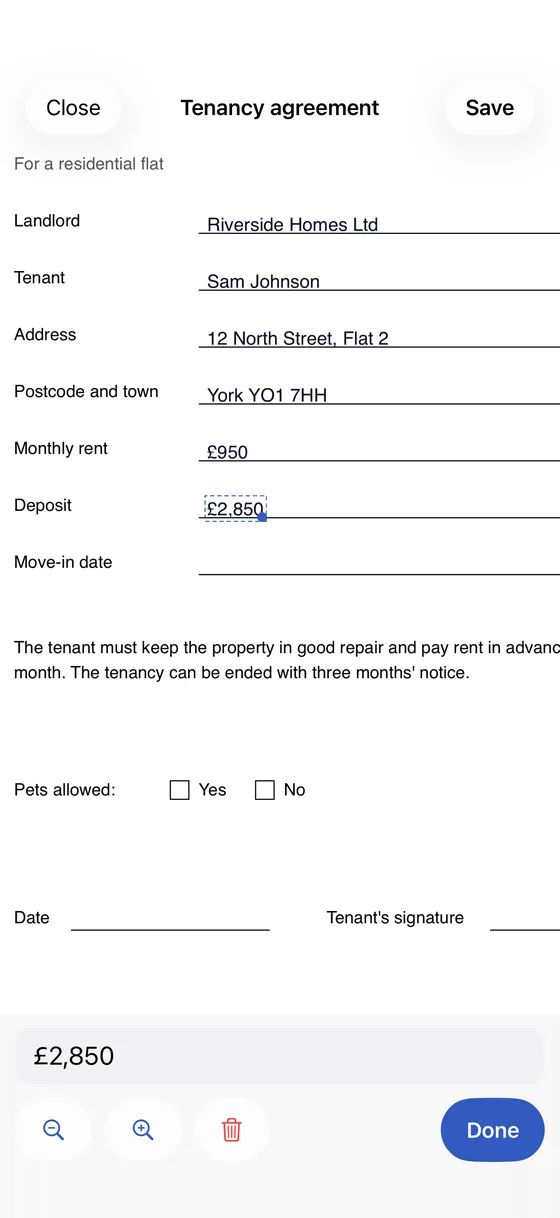
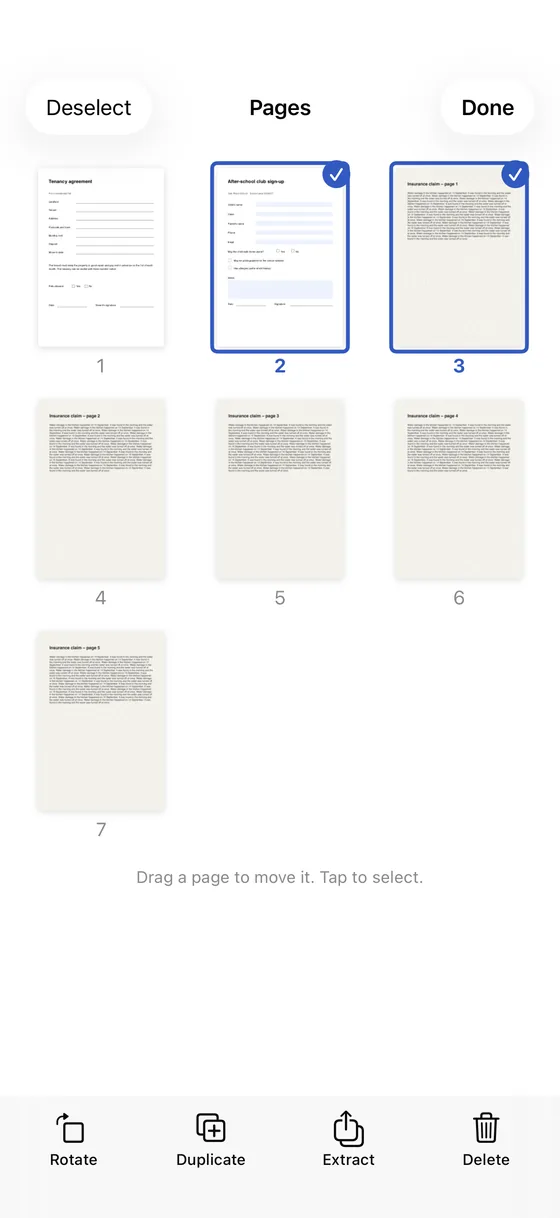
I made Udfyld for the PDFs people actually get sent: the school form, the lease, the insurance claim. It fills in real form fields and puts your text neatly on the printed line of a flat PDF. The date, a tick or your signature is one tap each. It also moves, rotates, duplicates, extracts and deletes pages, and it runs on iOS 17 and later, so you don't need Preview for that. Udfyld costs $1.99, once. No account, no ads, and the PDF never leaves your phone.
 1Text on the printed line
 2Drag a page to move it3Rotate, extract or delete
- Text on the printed line
- Drag a page to move it
- Rotate, extract or delete
Udfyld can't change existing text either. If that's what you need, the options above are the honest answer.
More guides: Fill out a PDF · Sign a PDF · Combine PDF files · Is there a free PDF editor for iPhone?